Vanilla Frontend Challenge is a weekly challenge to build UI components with HTML, CSS and Javascript the vanilla way!
View all the challenges in GitHub
Goal:
- A search box with an icon
- A navigation menu that shows a dropdown when hovered
- When a country is selected, the cities options should change based on the country
- Responsive design
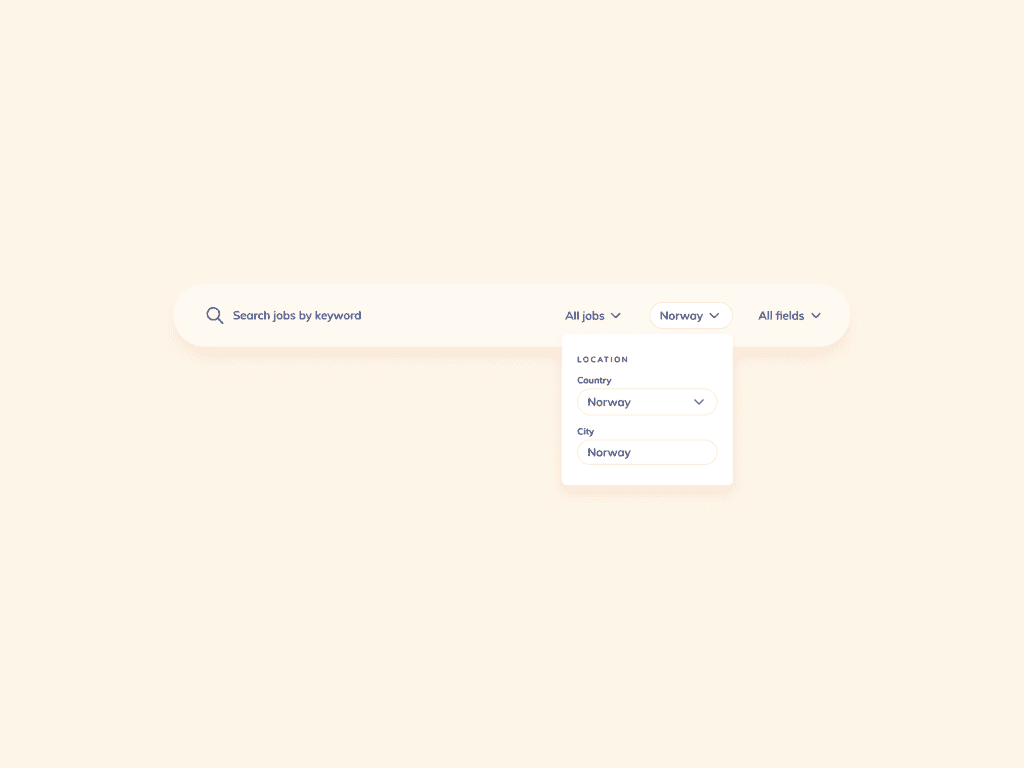
UI designed by uidailydesign.com
Output:
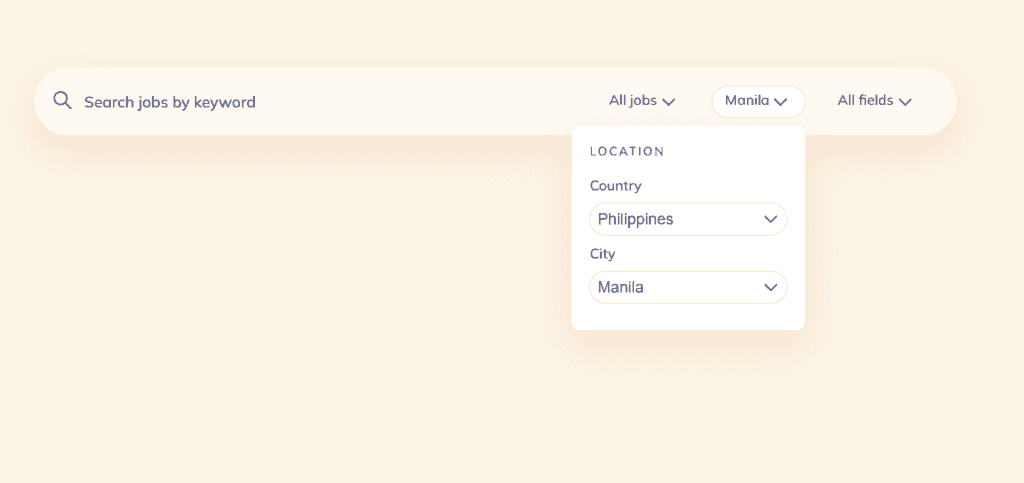
Learnings:
How to customize
By default,
HTML:
<select>
   <option value="Test">Select option</option>
   <option value="Test">Test</option>
   <option value="Test 2">Test 2</option>
   <option value="Test 3">Test 3</option>
   <option value="Test 4">Test 4</option>
</select>
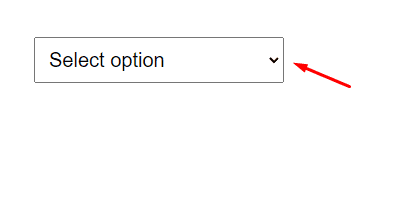
To use custom icon, add a CSS property appearance: none to remove the default. Then add a background image as the icon.
CSS:
select {
   width: 250px;
   padding: 10px;
   font-size: 20px;
   appearance: none;
   background-image: url('./down-arrow.png');
// replace with path of your image
   background-size: 20px;
   background-repeat: no-repeat;
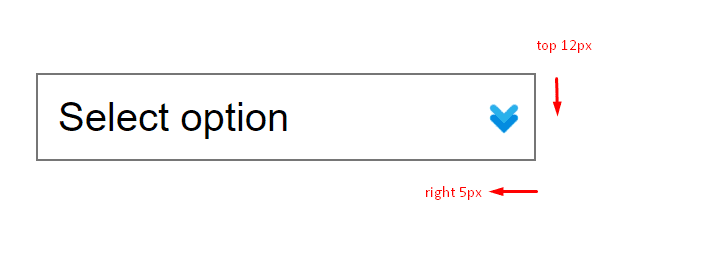
   background-position: right 5px top 12px;
}
To adjust the position of the image, use the CSS property background-position
In the example above: background-position: right 5px top 12px is equivalent to:
background-position-x: right 5px;
background-position-y: top 12px;
How to make dropdown align to the right
To create a regular dropdown effect on hover:
HTML:
<ul class="menu">
  <li>
    <p>All Jobs</p>
    <ul>
      <li>Frontend Developer</li>
      <li>Backend Developer</li>
      <li>Consultant</li>
      <li>Project Manager</li>
    </ul>
  </li>
  <li>
    <p>All Fields</p>
    <ul>
      <li>Engineering</li>
      <li>Accountancy</li>
      <li>Education</li>
      <li>Design</li>
  </li>
</ul>
CSS:
.menu {
  display: flex; /* To make the main list display side by side */
}

.menu ul li {
  color: #222;
  padding: 10px;
}

li {
  list-style: none;
}

.menu > li {
  padding: 0 30px;
  cursor: pointer;
  border: 1px solid black;
  margin: 0 10px;
  border-radius: 20px;
  background-color: #fff;
}

.menu > li ul {
  display: none;
  width: 200px;
}

.menu > li:hover ul {
  display: block;
  position: absolute;
  background-color: #fff;
  padding: 20px;
  border: 1px solid red;
}
This is the most important property, which is what makes the dropdown effect:
.menu > li:hover ul {
  position: absolute;
}
To make it align on the right of the menu, all you have to do is add right: 0 to the dropdown, which is the inner <ul> element and add position: relative to the outer <li> element.
The right property is used to position an element from the right. So if you put right: 20px, it will create a space of 20px from the right of the page.
The property position: relative prevents right: 0 from positioning the dropdown to the right of the page but instead, just display it right where it is.
Here's the updated CSS:
.menu {
  display: flex;
}

.menu ul li {
  color: #222;
  padding: 10px;
}

li {
  list-style: none;
}

.menu > li {
  padding: 0 30px;
  cursor: pointer;
  border: 1px solid black;
  margin: 0 10px;
  border-radius: 20px;
  background-color: #fff;
  position: relative;
}

.menu > li ul {
  display: none;
  width: 200px;
}

.menu > li:hover ul {
  display: block;
  position: absolute;
  background-color: #fff;
  padding: 20px;
  border: 1px solid red;
  right: 0;
}
Final result:

How to set global variables after fetching
The part that took me so long was the fetching for the countries and cities. At first I wanted to import a local json file but found out it is not supported by the Fetch api. Same error with XMLHttpRequest.
More errors:

error when using