You don't need to pay hosting services and upload your WordPress site just to see how looks in an actual mobile phone. But this is given that you're only testing on your local server. In my case, I'm using XAMPP to host a WordPresss site.
Pre-requisites:
- A running local server
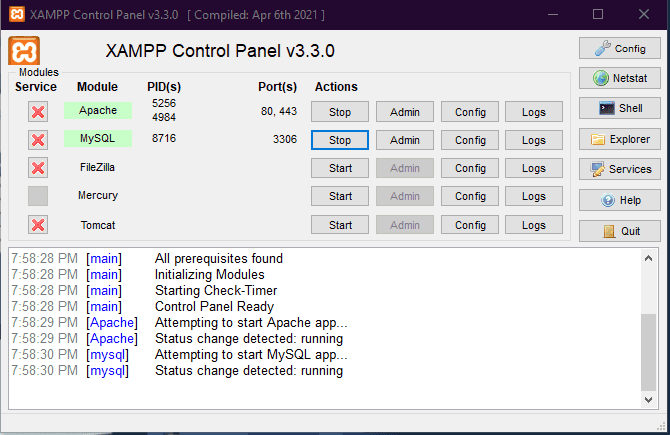
You're most probably already have a local server in your machine. If you're using XAMPP, make sure it's running by starting Apache and MySQL in the control panel.
- An installed WordPress site (of course!)
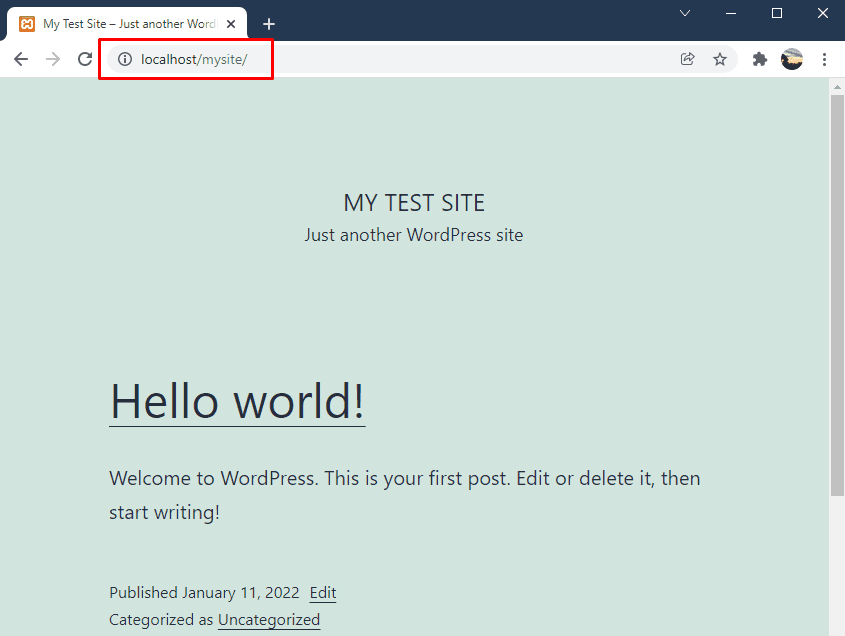
Check that your WordPress site is running successfully, just type in your browser localhost/mysite (change mysite to the name of the folder you installed wordpress in)
- Connect your computer and mobile phone to the same wifi/network
Check the network settings in both your computer and mobile phone to make sure you're connected to the same wifi or network in case you have multiple networks. Else, this won't work.
Steps:
1. Get the IP address of your local network.
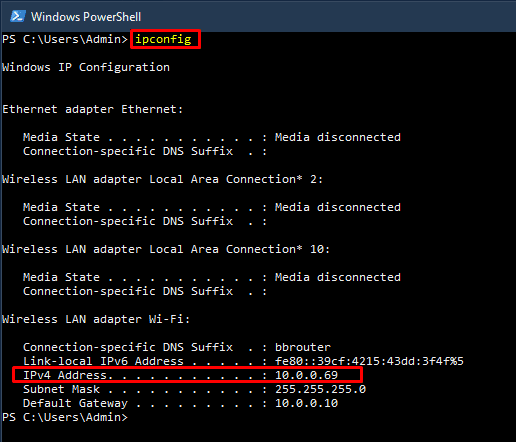
Open a terminal and type ipconfig in Windows or **ifconfig** in Linux and Mac. It should display your network details. Look for the IPv4 address section. The address usually starts with 192.168.x.x or 10.0.x.x. Copy it.
2. Type the ip address in your computer and mobile phone's browser to test if it's correct.
If you're using XAMPP, it should go to XAMPP's dashboard in both devices. It means your phone can already access your site.
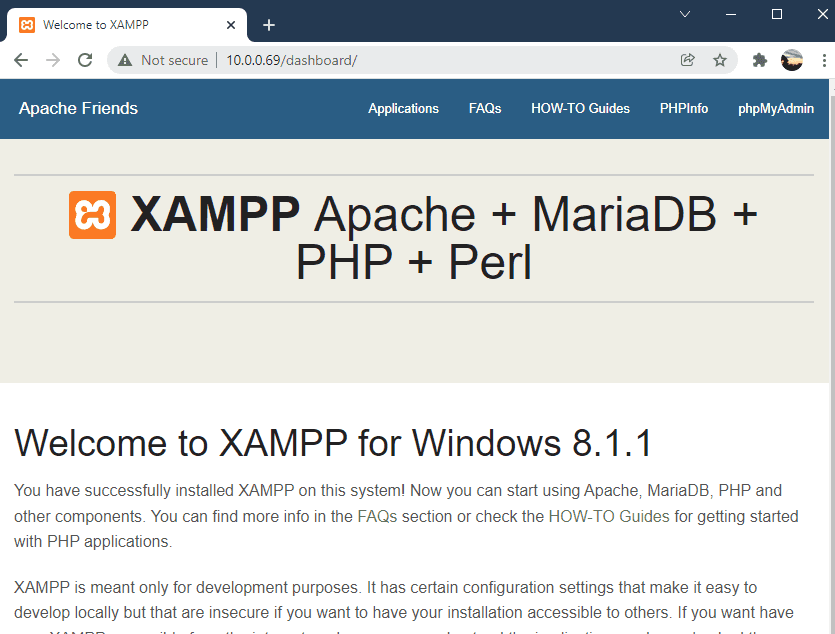
Computer's view
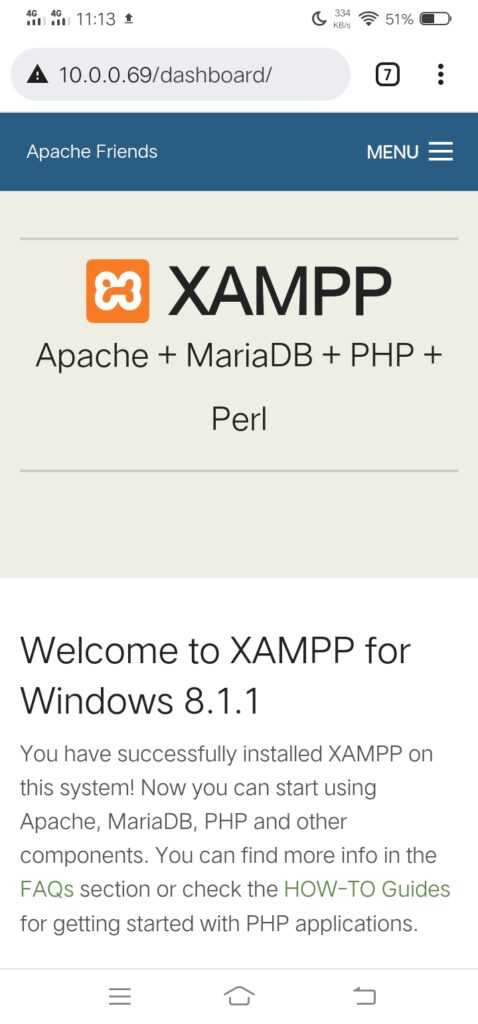
Mobile view
2. In your open WordPress site, replace localhost with the ip address
Example: From localhost/mysite to 10.0.0.69/mysite
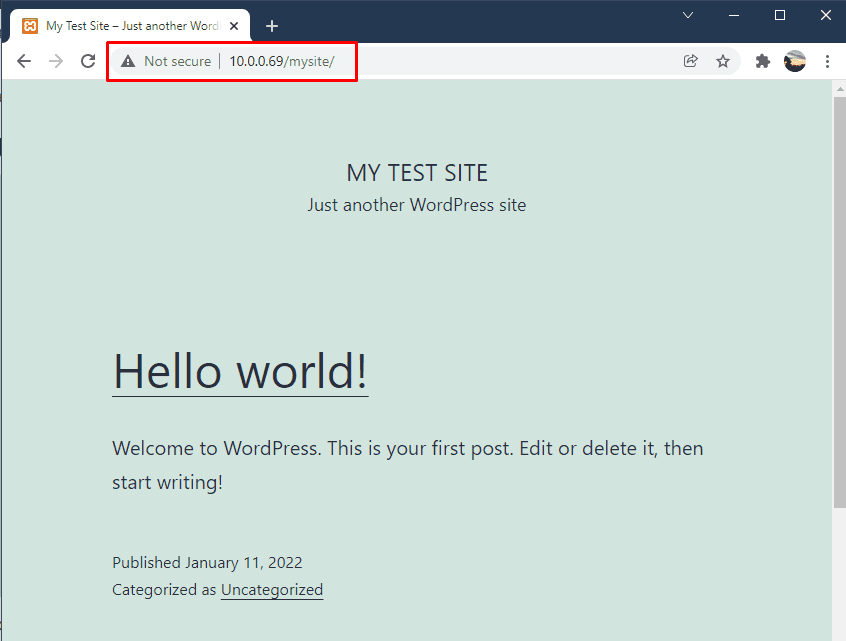
Now, if you run the address in your mobile phone, it should be able to access your site, but it will look ugly like this:
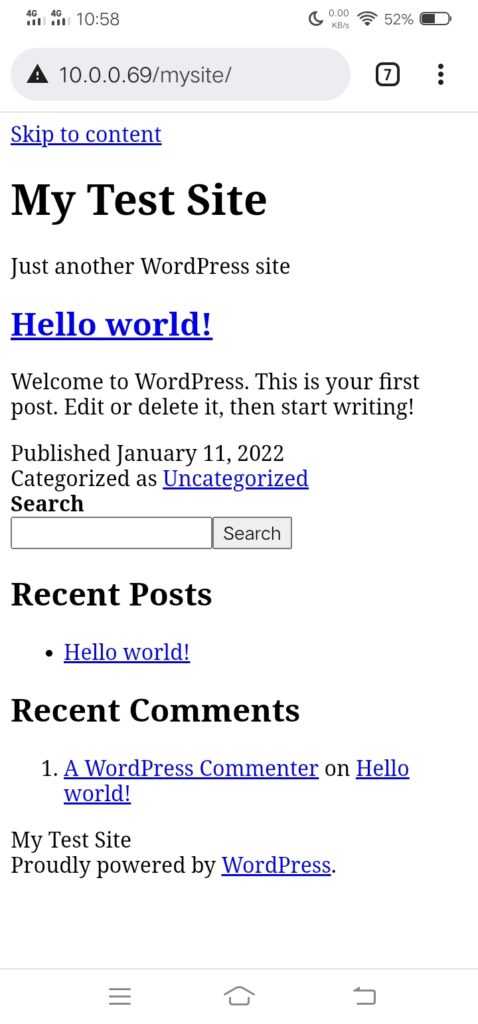
Site's mobile view
The css didn't load. Also if you click any links, the url will change back to localhost, something like localhost/mysite/some-text-and-numbers. That's because WordPress will use the url you set in your settings, which was by default set to localhost. To solve that, just replace localhost with your IP address.
3. Change your site's URL in the WordPress settings
- Go to WordPress dashboard Settings -> General
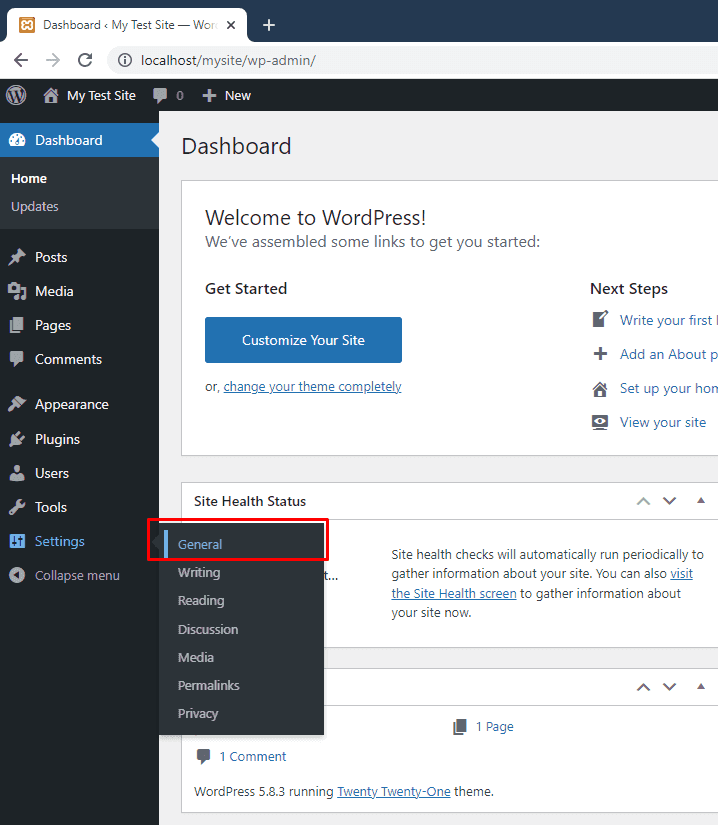
- Replace the localhost in both URLs with your computer's IP address:
ipaddress/mysite
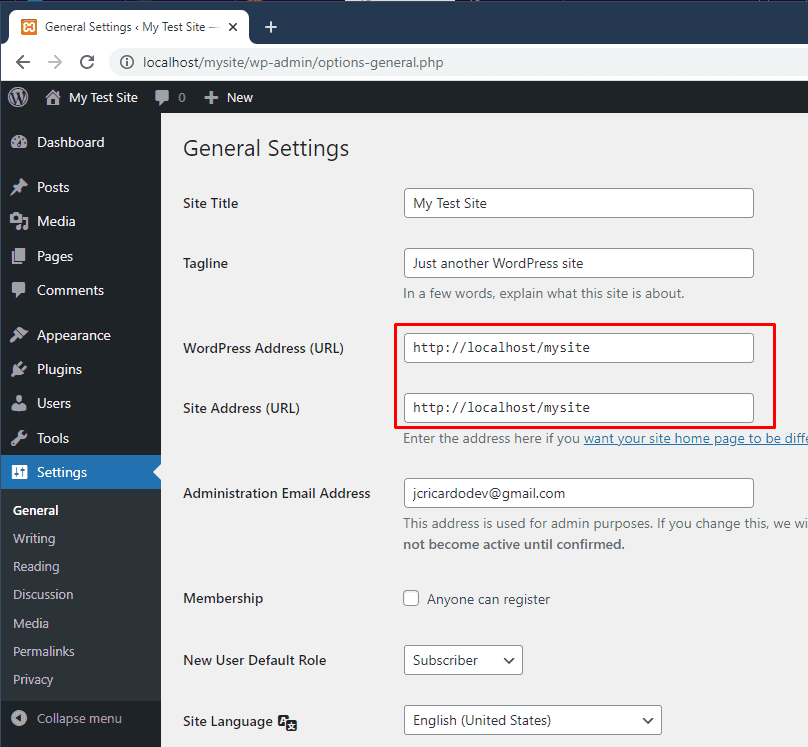
Why change both? What's the difference between WordPress Address (URL) and Site Address (URL)?
The WordPress Address is the directory where you installed your WordPress site so it contains the core files (those files you extracted after downloading WordPress), such us wp-content and wp-includes. The Site Address is the identity of your site or the address you want people to type in their browser to reach your site.
By default installation, they are the same, but you have an option to install WordPress in a different directory, such that your site will be accessed say for example through localhost/mysite but your WordPress files are inside localhost/mysite/subdirectory.
To actually see the difference, try changing the WordPress Address (URL) to ipaddress/mysite and keep the Site Address (URL) to localhost/mysite and inspect the source code of your site.
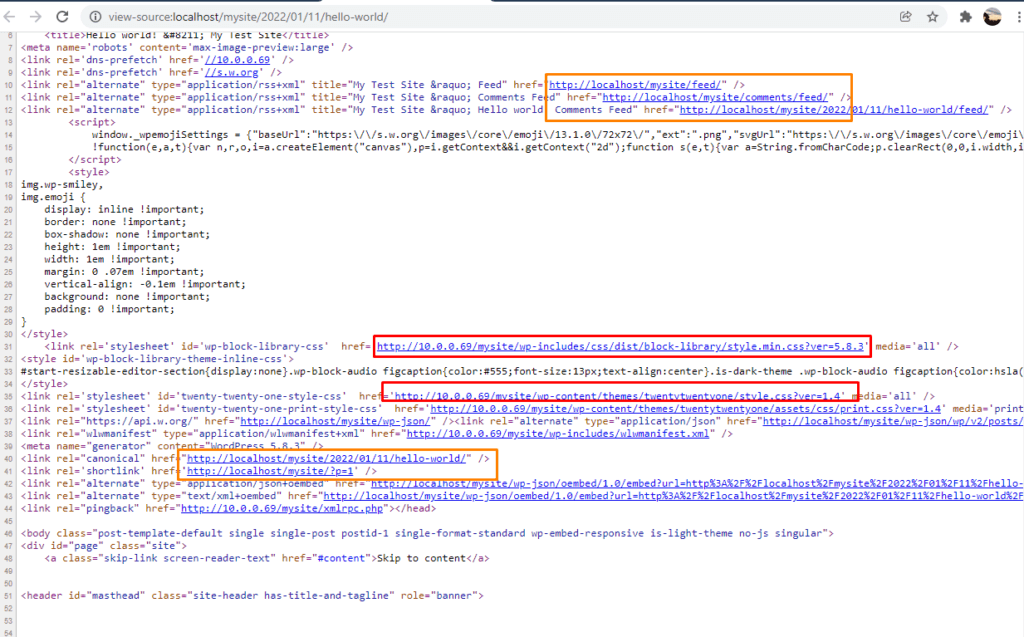
Using WordPress Address (URL): 10.0.0.69/mysite and Site Address (URL): localhost/mysite
In the screenshot above, you will see that the URLs with the IP address (red boxes) are the core files of WordPress such as wp-includes and wp-content. The URLs with localhost (orange boxes), which is the Site Address (URL), are those that links to the content of your site such as pages and posts.
If you change only the WordPress address, your site will load the css in your mobile, but clicking post will lead to broken links. That's why you need to change both addresses.
- After changing the URL settings, reload the site in your mobile phone's browser
Now it should show your site properly in your mobile phone.
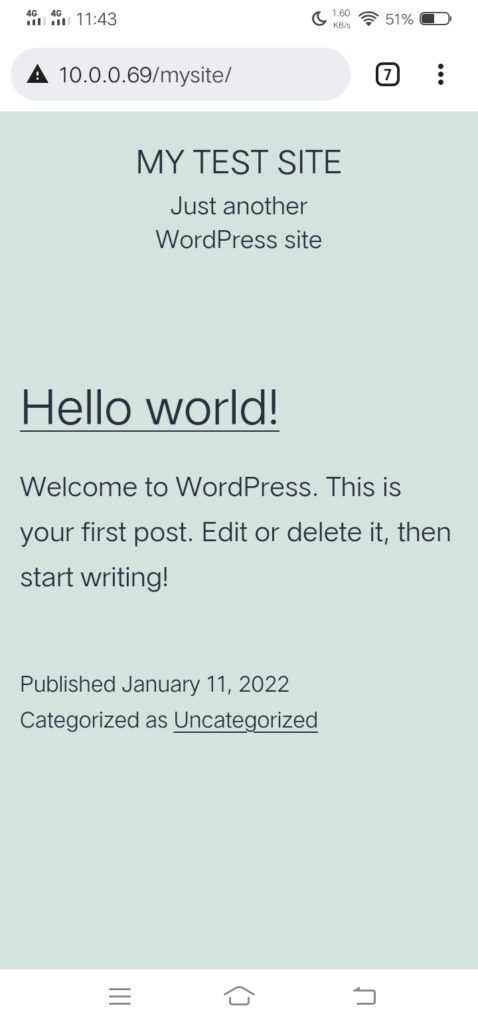
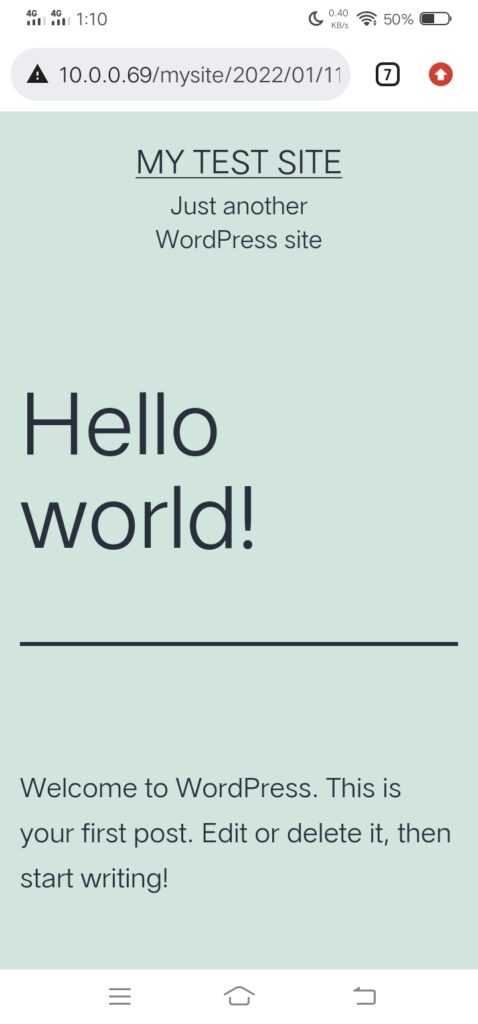
This is just a quick way to test the responsiveness of your site on actual mobile devices, without additional hosting cost and deployment. This will also work on any device, such as a tablet or another desktop computer, for as long as it's connected to the same wifi/network.
Use Cases:
- Quick way to test your WordPress site on a real mobile device
- You want to show your site to multiple people at home to ask for their feedback
- Quick demo in your office (if your working onsite)
Additional Information:
For more details, you can read on the WordPress codex:
https://wordpress.org/support/article/changing-the-site-url/
https://wordpress.org/support/article/giving-wordpress-its-own-directory/